
Documentation
Introduction
TableR is a fast, cross-platform desktop workspace for exploring schemas, writing SQL, visualizing results, and working with AI.
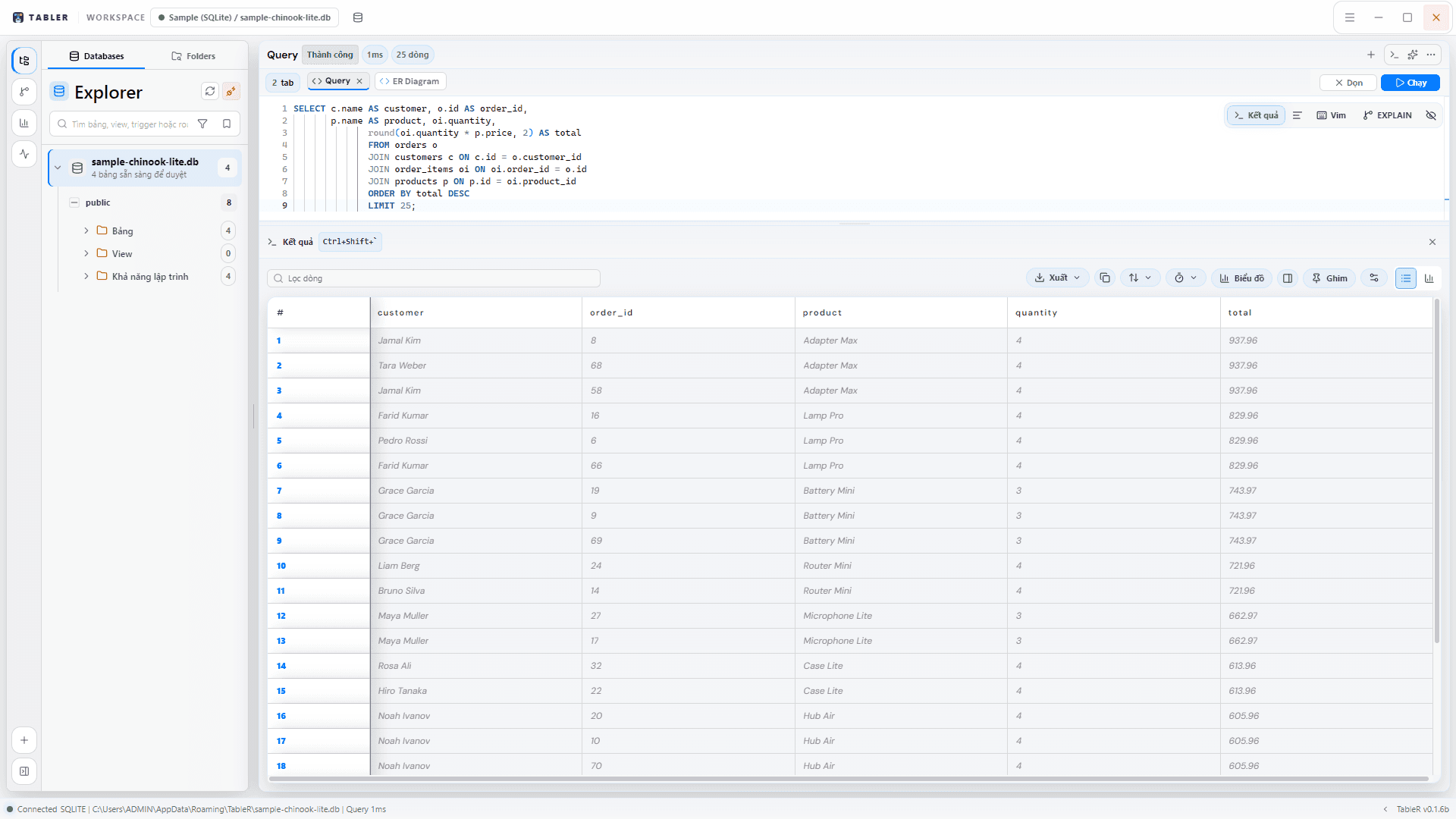
TableR brings the tools used during day-to-day database work into one native desktop application. Browse database objects, write and run SQL in Monaco, inspect or export results, build charts and ER diagrams, and keep a database-aware AI assistant beside the query instead of in another window.
Head to Getting started to install a release and run your first query, then come back for the bigger picture. Prefer to read first? Keep scrolling.
Why TableR
Most database work is scattered across a query tool, a schema browser, a diagramming app, an export script, and a separate AI chat window. Every switch drops context. TableR collapses that into one local-first workspace so the schema, the query, the results, and the assistant stay in a single view — and stay on your machine.
- One workspace — editor, explorer, results, charts, diagrams, terminal, and AI without leaving the window.
- Local-first — the desktop app does the work on your machine; connection secrets live in the OS keyring and never touch this website.
- Safe by default — a six-level SQL Safe Mode plus a review-before-run flow keep destructive statements behind an explicit confirmation.
- Broad coverage — 18 relational, analytical, embedded, NoSQL, and cloud engines behind one consistent interface.
- Open source — GPLv3, so you can read the code, open an issue, or contribute the workflow you wish existed.
What you get
SQL workspace
Monaco editor, multiple query tabs, formatting, execution timing, explain tools, history, and favorites.
Data exploration
Searchable schema explorer, table browsing, row inspection, pagination, sorting, and filtering.
Results and exports
Table and chart views with CSV, JSON, Excel, and SQL-oriented export workflows.
Visual database tools
Interactive ER diagrams, minimap and layout controls, metrics boards, and query plan visualization.
AI assistance
Prompt, Edit, and Agent modes with schema context, attachments, review-before-run SQL, and configurable providers.
Desktop workflow
Saved connections, local database bootstrap, OS keyring credentials, command palette, terminal, and session persistence.
Design principles
A few ideas shape every screen in TableR. Knowing them up front makes the rest of these docs easier to navigate.
Local-first
Your databases, credentials, and query history stay on your machine. The desktop app connects directly; this site only documents it.
Safe to explore
Safe Mode classifies every statement, and destructive DDL stays blocked or gated behind confirmation — so you can poke at production-like data without fear.
Keyboard-driven
New tab, run, format, command palette, and the AI panel are each one shortcut away, and every binding is remappable in settings.
Consistent across engines
The same connection form, workspace, and result tools work whether you point at PostgreSQL, ClickHouse, MongoDB, or Cloudflare D1.
Who it is for
TableR is built for software engineers and database-focused developers who inspect production-like databases, write SQL, edit small data sets, move data in and out, and use AI to investigate — while keeping control over every database write. Analysts and data teams who want one calm workspace across relational, analytical, document, cache, and cloud engines are right at home too.
TableR is distributed under the GNU General Public License v3.0. You can read the code, open an issue, or contribute the workflow you wish existed.
How these docs are organized
The sidebar follows the order you will likely need it: install, connect, query, explore, visualize, then automate with AI. Jump straight to a section below.
Getting started
Install a release or build from source, then run your first query.
Connections & databases
The launcher, all 18 supported engines, and local bootstrap.
SQL workspace
The Monaco editor, tabs, execution model, Safe Mode, history, and export.
Exploring data
Schema explorer, table browsing, the row inspector, and structure tools.
Visualize & diagrams
ER diagrams, charts, metrics boards, and query plans.
AI & Agent
Prompt, Edit, and Agent modes, autonomy, and the safety model.
Keyboard shortcuts
The full reference for working without leaving the keyboard.
Architecture & FAQ
How the app is built, plus answers to common questions.