
Documentation
SQL workspace
Write SQL in Monaco with tabs, a predictable execution model, Safe Mode, history, favorites, and a terminal.
The query workspace keeps the editor, data, and tools in one view. Explore objects from the sidebar, write SQL with Monaco, run it with a predictable timeout-and-cancel model, inspect results as a table or chart, and drop into the terminal without breaking context.
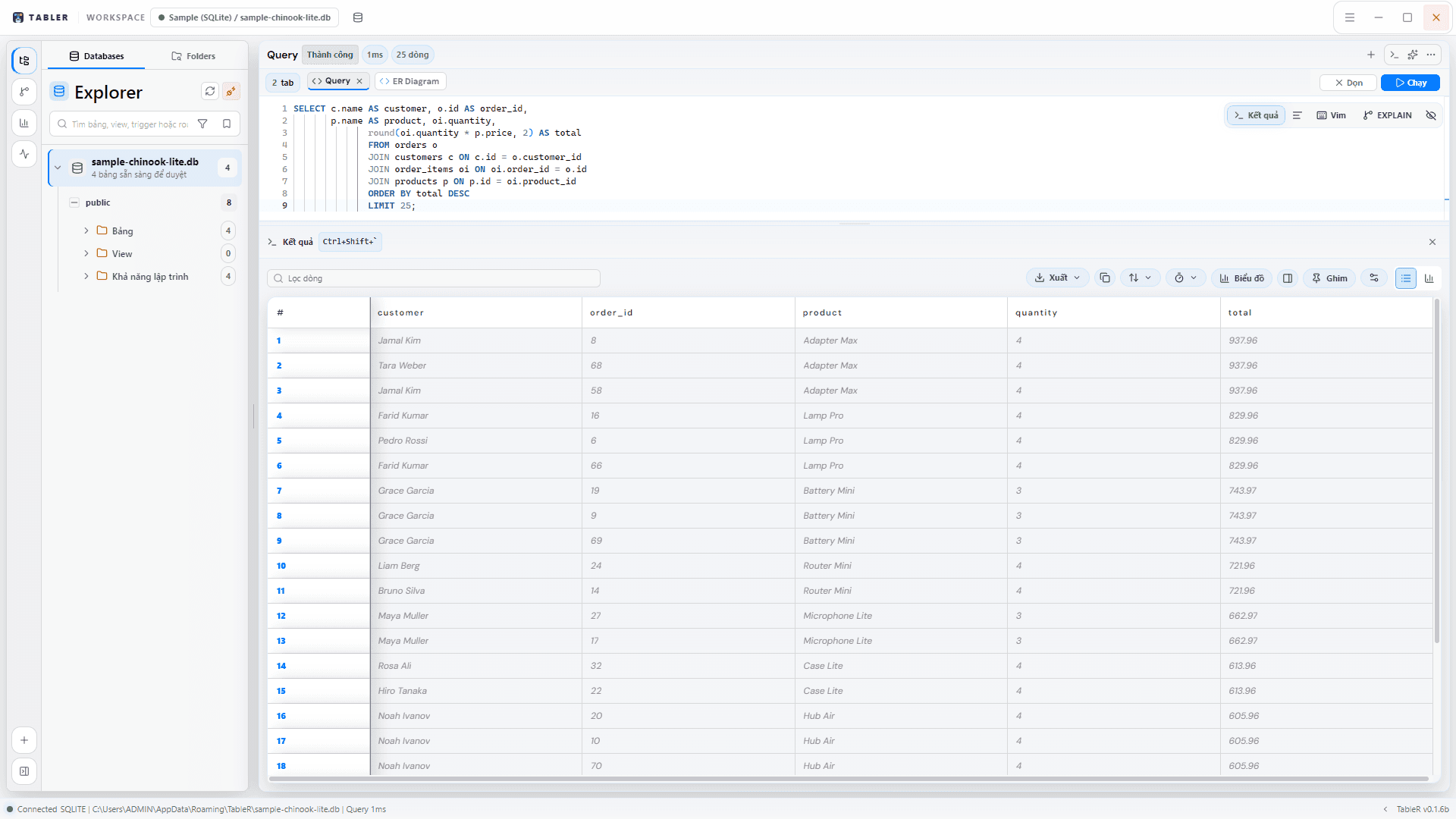
The workspace at a glance
- Database explorer on the left (toggle with Ctrl + B) for schemas, tables, and columns.
- A Monaco editor in the center with SQL awareness, autocomplete, and formatting.
- Multiple query tabs so related statements stay side by side.
- A results panel below the editor (toggle with Ctrl + Shift + `) with table and chart views.
- An integrated terminal dock (toggle with Ctrl + `) and the AI panel (toggle with Ctrl + Space).
Write SQL in Monaco
The editor is the same engine that powers VS Code, tuned for SQL. Autocomplete and schema hints appear as you type; press Ctrl + Space to force suggestions, and Ctrl + Shift + F to format the current statement.
- Schema-aware completion for databases, tables, and columns on the active connection.
- One-key formatting to normalize spacing, casing, and indentation.
- Multiple tabs (Ctrl + N) to keep exploratory queries, edits, and reports separate.
- The quick switcher (Ctrl + P) and command palette (Ctrl + Shift + P) jump between tabs, objects, and actions.
Run a query
- 1Open a query tab
Press Ctrl + N to create a new tab bound to the active connection.
- 2Write SQL
Type your statement in Monaco. Format it with Ctrl + Shift + F if you like.
- 3Execute
Press Ctrl + Enter to run the statement under the cursor. Results appear below with the execution time.
- 4Reuse it
Save it to favorites (Ctrl + Shift + S) or find it later in history (Ctrl + H).
Ctrl + Enter runs the statement under the cursor, not the whole tab — so a scratch tab full of queries only executes the one you are on.
Timeouts and cancellation
TableR classifies each run before it executes and applies a timeout based on how risky the batch is. Read-only work gets a generous window; anything that mutates data or schema gets a tighter one.
| Statement kind | Timeout | Notes |
|---|---|---|
| Read-only (SELECT / SHOW / EXPLAIN / WITH) | 180 seconds | The long window for exploration and reporting. |
| Mutating or schema (INSERT / UPDATE / DELETE / DDL, including mutating CTEs) | 60 seconds | Applied to writes and structure changes. |
| Mixed batch | 60 seconds | If a batch contains any write, the whole batch uses the shorter window. |
Cancel a running query at any time. Cancellation unblocks the UI immediately; on PostgreSQL and MySQL/MariaDB, TableR also stops the statement on the server by issuing the cancel over a second connection, so it does not queue behind the query it is cancelling.
The embedded SQLite driver has no public interrupt API, so cancelling stops TableR from waiting, but the engine may finish the statement in the background.
Stay safe with Safe Mode
Safe Mode is a six-level gradient over statement kind. It decides — before a statement runs — whether it executes freely, needs a confirmation, or is blocked outright. Raise the level when you are working against important data.
| Level | Label | Effect |
|---|---|---|
| 0 | Disabled | Statement-kind guard off (the capability guard still runs). |
| 1 | Read Only | Only SELECT / SHOW / EXPLAIN / WITH; all writes blocked. |
| 2 | Low Risk | SELECT and INSERT only; UPDATE / DELETE blocked. |
| 3 | Standard | INSERT / UPDATE / DELETE need confirmation; DROP / TRUNCATE / most ALTER / CREATE TABLE blocked. |
| 4 | Strict | Confirmation for all writes; DROP / TRUNCATE / CREATE TABLE hard-blocked. |
| 5 | Paranoid | Confirmation for SELECT and every write, with a preview and estimated affected rows. |
Regardless of level, a capability guard blocks SQL that touches the filesystem, network, or OS (for example pg_read_file, LOAD_FILE, COPY … TO PROGRAM, xp_cmdshell). It runs even at level 0 and has no bypass.
History and favorites
- Query history (Ctrl + H) records what you ran so you can re-open or re-run it.
- SQL favorites (Ctrl + Shift + S) save statements you reach for often.
- Tabs and session state persist, so reopening TableR brings your work back.
Results, charts, and export
Every result set opens in a fast, virtualized grid you can sort, filter, and page through — even on large tables. Switch the same result between a table and a chart, then export it when you need to share.
- Table view with sorting, filtering, and pagination for big result sets.
- Chart view to visualize the same rows without a round trip.
- Export to CSV, JSON, Excel, or SQL-oriented formats.
Integrated terminal
Toggle a terminal dock with Ctrl + ` to run shell commands next to your queries — handy for migrations, scripts, or a quick psql/mysql session — without leaving the workspace.
Ctrl + Enter runs, Ctrl + Space toggles the AI panel, Ctrl + B the explorer, and Ctrl + ` the terminal — most of a session never needs the mouse.